TextureSynth User Guide
Procedural Texture Generator for Blender — Version 1.1.3
Installation
System Requirements
- Blender 4.3 or newer
- GPU with Vulkan support
- OS Windows
Install in Blender
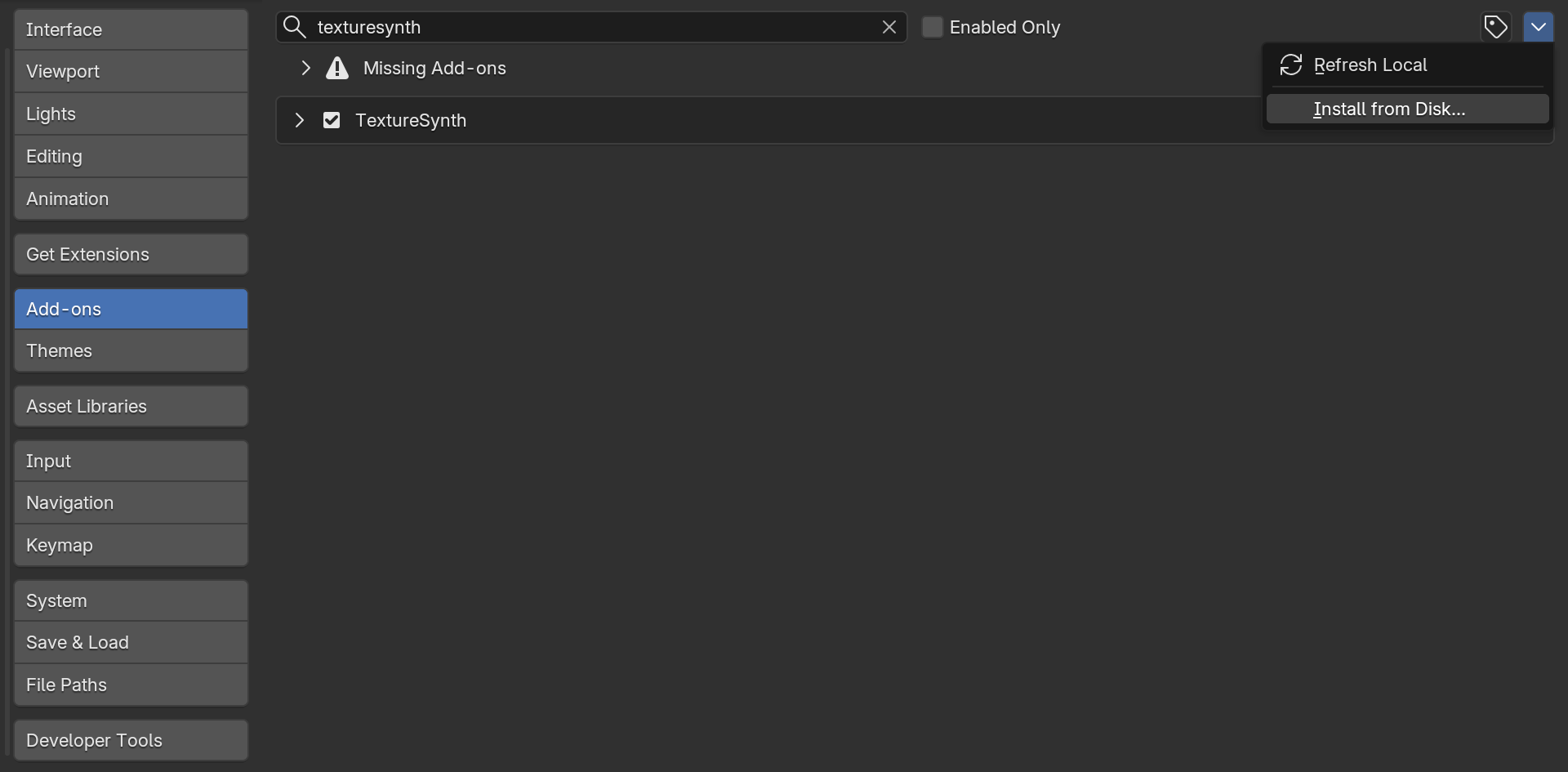
- Open Blender and go to Edit → Preferences → Add-ons.
- Click the Install dropdown button at the top right of the Preferences window, then select Install from Disk.
- Navigate to the downloaded add-on ZIP file and select it.
- Click Install Add-on.
- In the add-ons list, search for TextureSynth.
- Enable the add-on by checking its checkbox.
- Restart Blender to complete the installation.
Verify It's Working
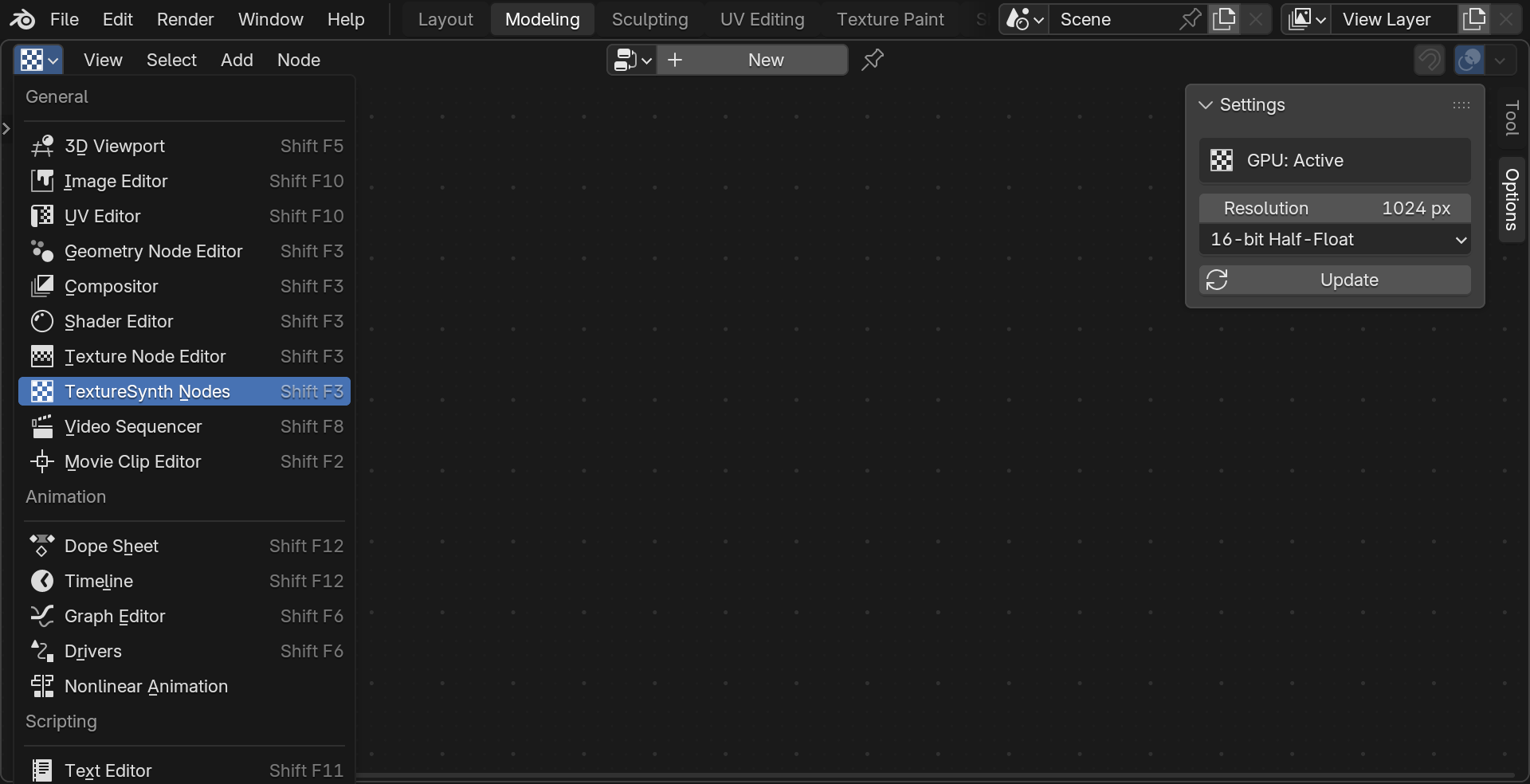
- In any Node Editor, click the editor type selector (top-left) and choose TextureSynth Nodes.
- Open the sidebar with N and find the Options tab.
- You should see GPU: Active.
Quick Start — Your First Texture
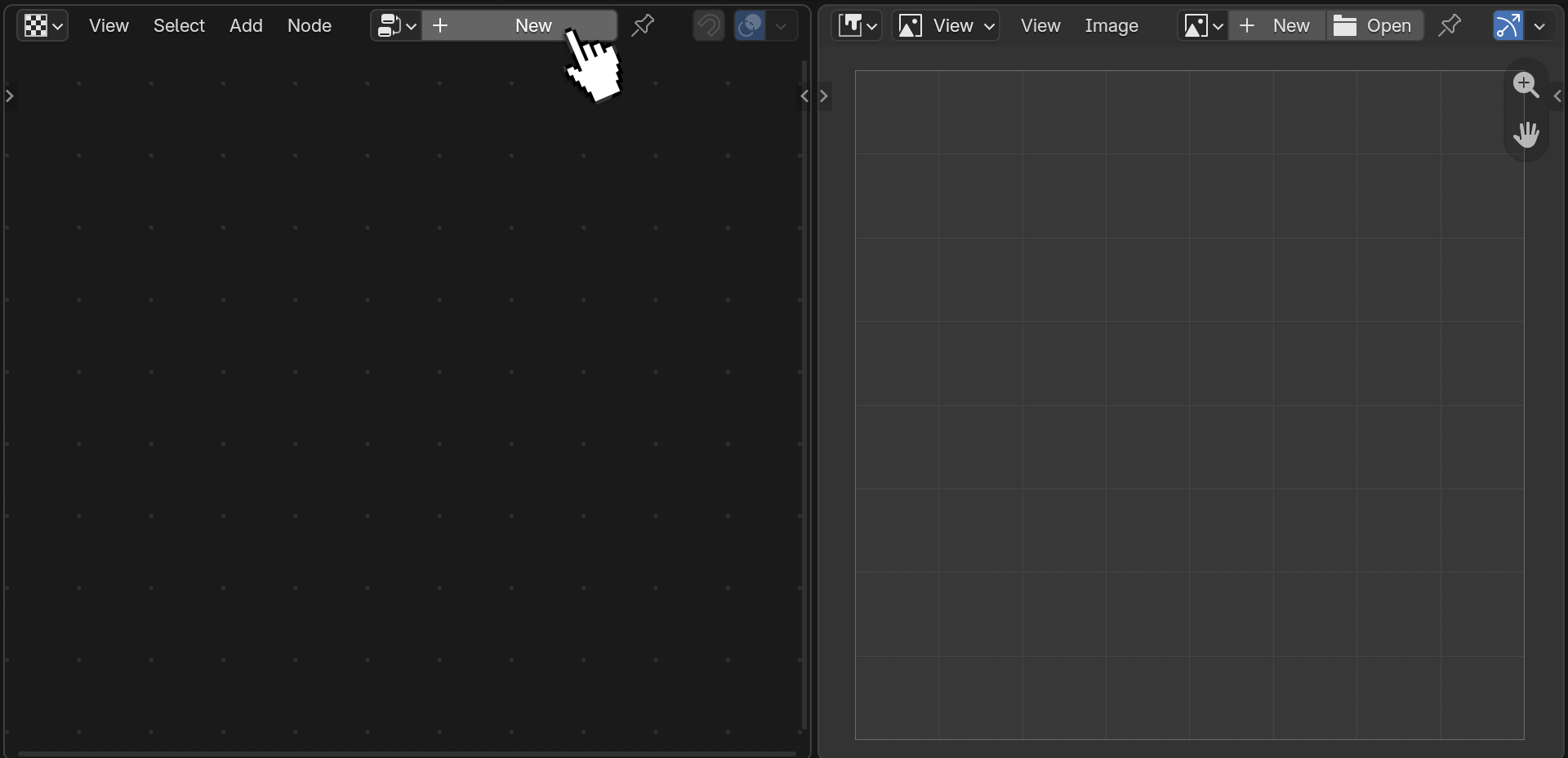
- Create a node tree by clicking New.
- Add a Generator with Shift+A → Simplex.
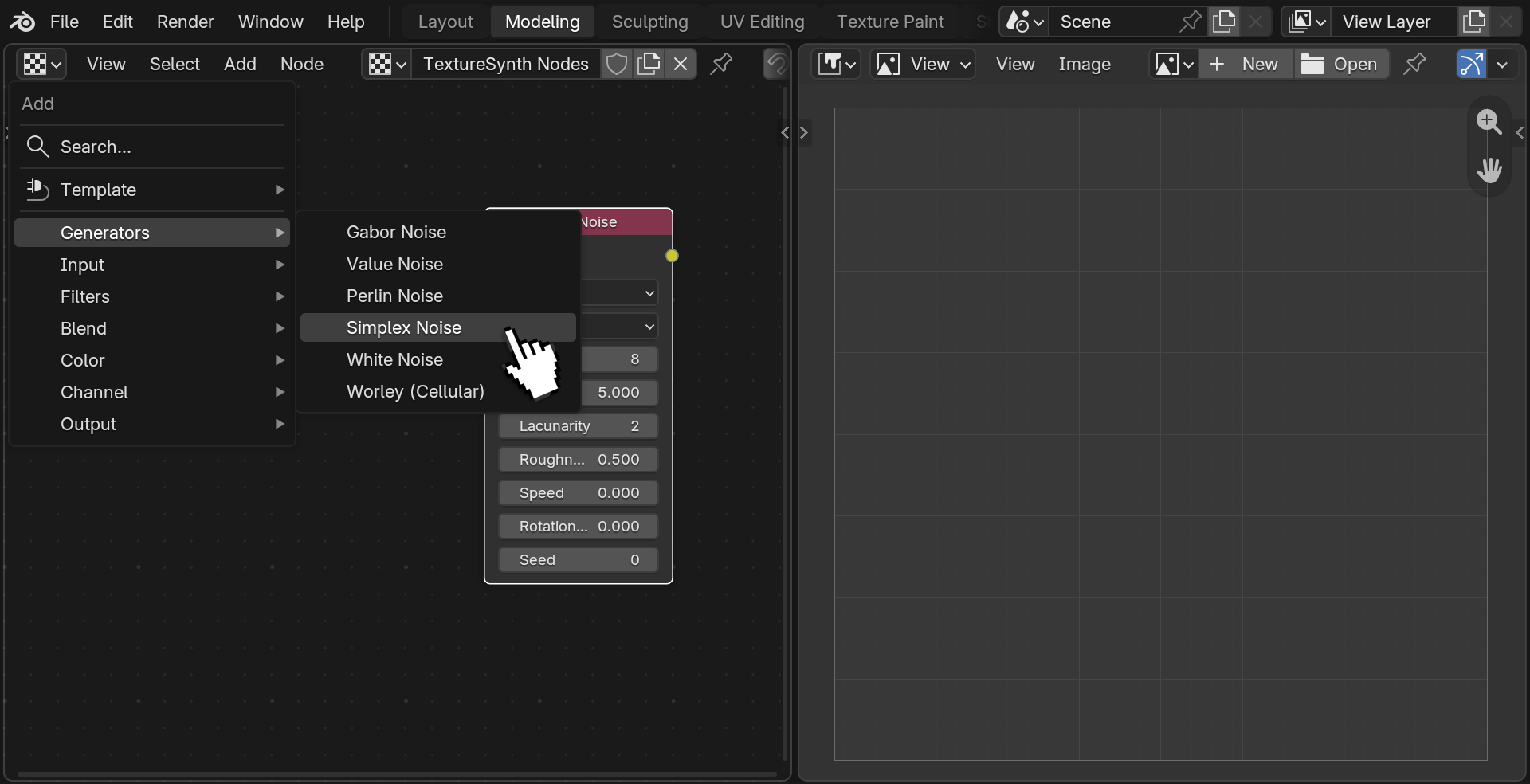
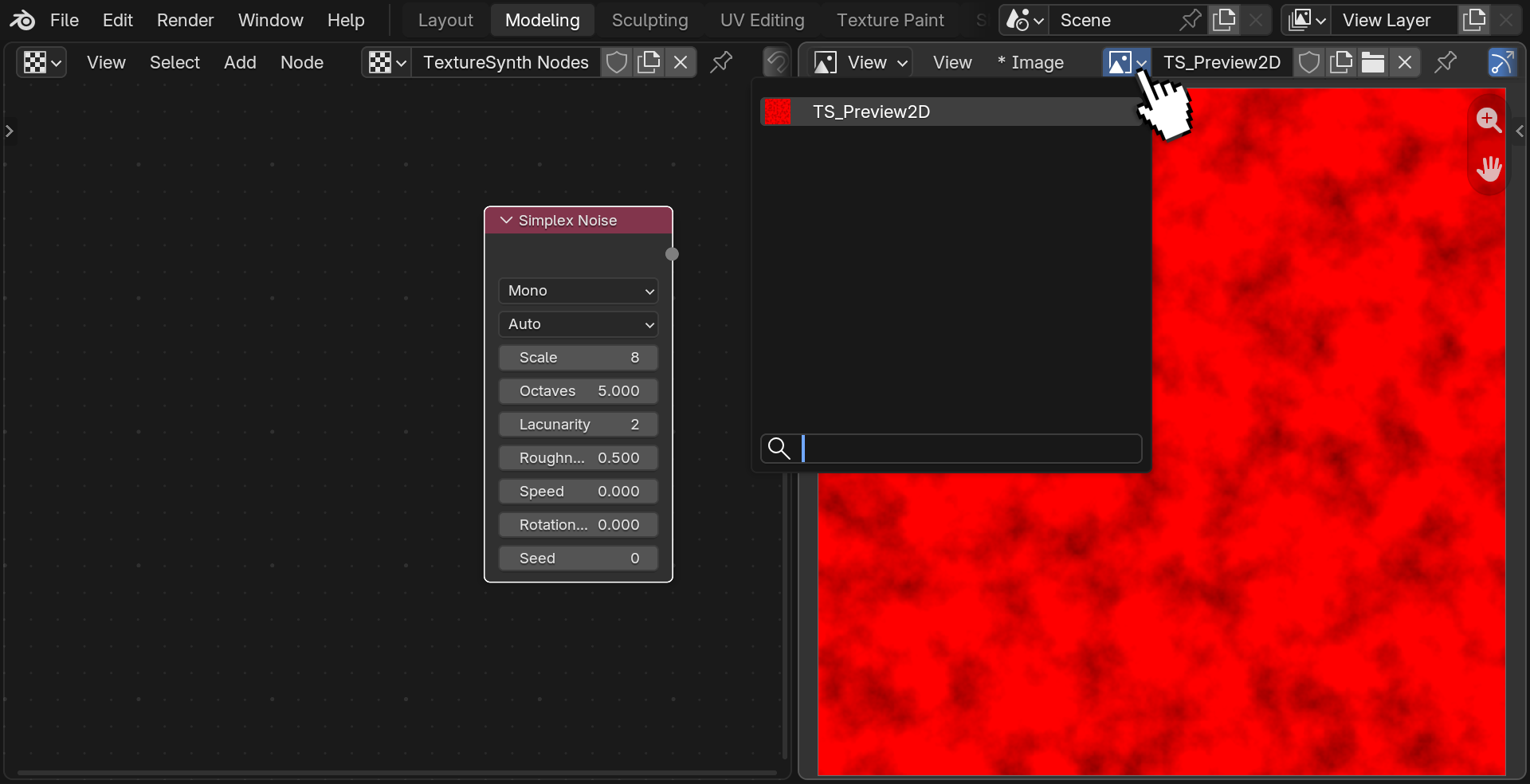
Open an Image Editor, locate and select TS_Preview2d. The texture may appear red — this is expected. Our Simplex node is set to Mono, so generated data is stored in the red channel only.
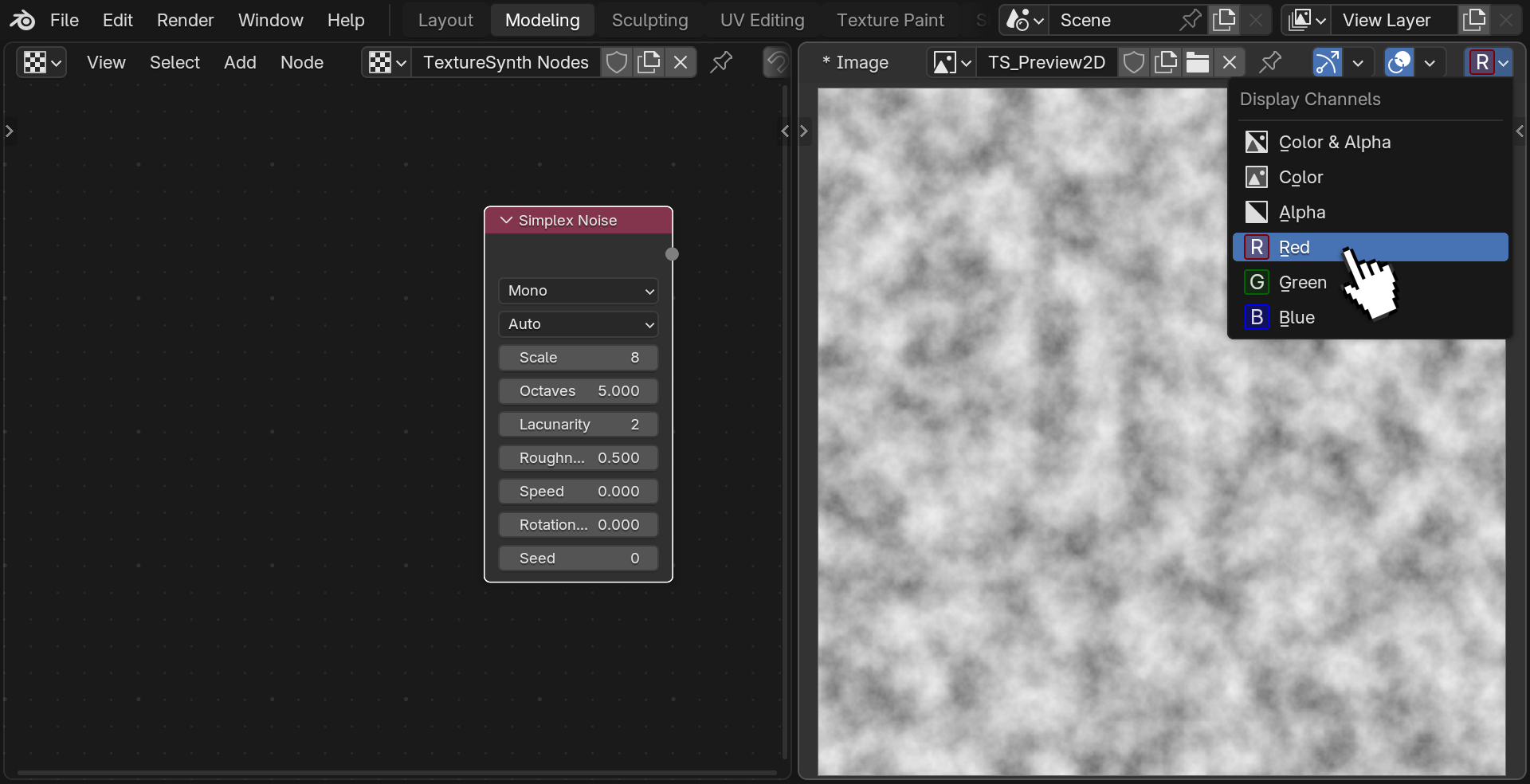
Adjust parameters. In the node panel, tweak Scale, Octaves, Roughness and Seed. The texture re-renders in real-time as you drag each slider.
Node Reference
Generators Generators
Perlin, Simplex, Value, Worley, Gabor, White Noise
Input Input
Color Constant, Image
Filters Filters
Blur, Warp, Invert, Grayscale, Height to Normal, Slope Blur
Blend Blend
Blend (16 modes: Mix, Add, Subtract, Multiply, Darken, Lighten, Average, Color Burn, Overlay, Screen, Color Dodge, Soft Light, Hard Light, Divide, Difference, Exclusion)
Color Color
Levels, Combine RGBA, Separate RGBA
Channel Channel
Shuffle, Remap
Output Output
Output
Workflow Tips
Precision Guide
| Precision | Best For | Notes |
|---|---|---|
| F8 (8-bit) | Masks, roughness, metallic, quick previews | Fastest. Banding may appear on smooth gradients. |
| F16 (16-bit half-float) | Most textures — default | Good dynamic range, no visible banding for most use cases. |
| F32 (32-bit float) | Normal maps, displacement, height fields | Maximum quality. Higher VRAM usage and slower evaluation. |
Troubleshooting
GPU Not Detected
If the sidebar shows GPU: Unavailable, make sure your GPU drivers are up to date.
Preview Not Updating
- Toggle on/off addon in preferences and ensure GPU: Active.
- Click the Update button in the sidebar to force a full rebuild.
- Click on a different node and then back to your target node.
Known Limitations
- No CPU fallback — a Vulkan-capable GPU is required.
- The add-on is in active development. Some features may change between releases.